How to send group emails from your iPhone
UPDATED: Now works with most email services and eliminates the Invalid Address dialog box. Thanks to commenter YF, Luke for the fix.
Ever wanted to send an email or photo to a pre-defined group of contacts on your iPhone
It’s a good thing the iPhone
This trick was inspired by a workaround I found for Gmail back when it didn’t allow us to create groups or distribution lists (See: Creating distribution lists in GMail).
To begin, go into the Notes app in your iPhone
UPDATE: Use the following format when typing your e-mail addresses to avoid the Invalid Addresses dialog or AOL/Comcast mail server errors.
name1<email1>,name2<email2>,name3<email3>,namen<emailn>
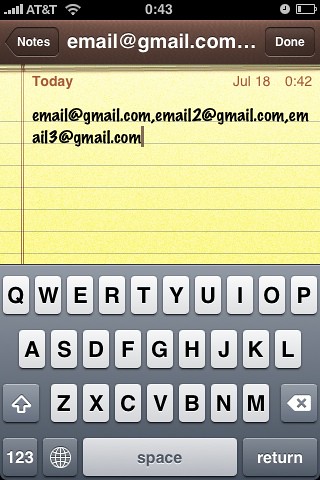
Alternatively, you can type this list in your computer, copy it into the body of an email and retrieve it in your iPhone
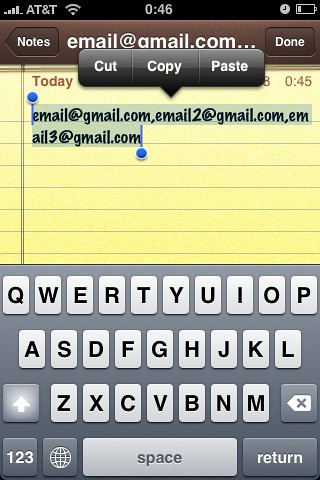
Select all the addresses and copy them to the iPhone
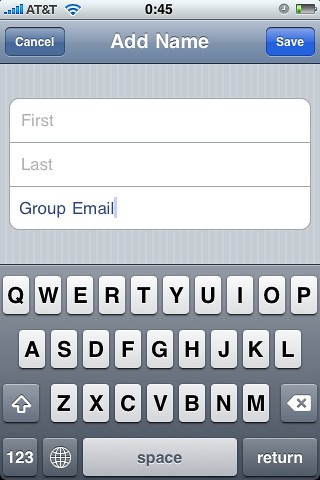
Go into the Contacts application and create a new contact for your distribution list. Type the group’s name into the contact’s Company field. Use something simple to type later on, such as GF for your family group or GW for your work group.
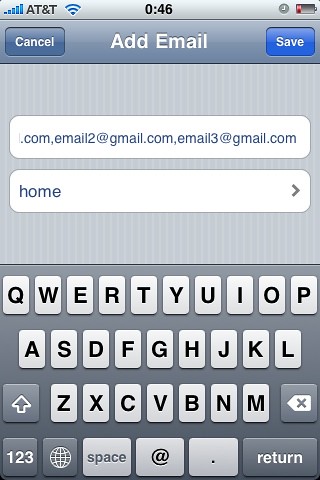
Paste the addresses you copied before into the contact’s email field and, if you like, change the field’s label to a custom value like “group mail.”
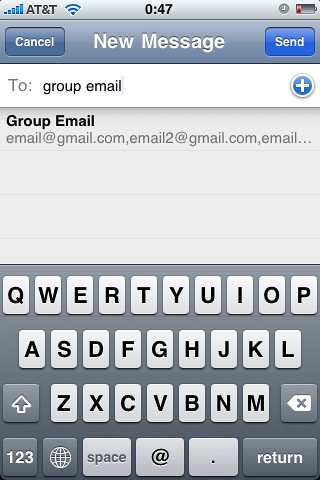
Go into your Mail app and create a new message. Type the group name in the To: field until it shows up in the list below, then select it:
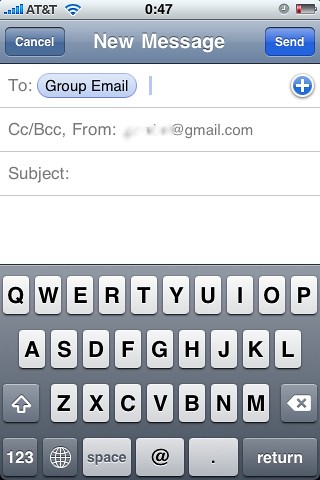
The group’s name will now show up in the To: field.
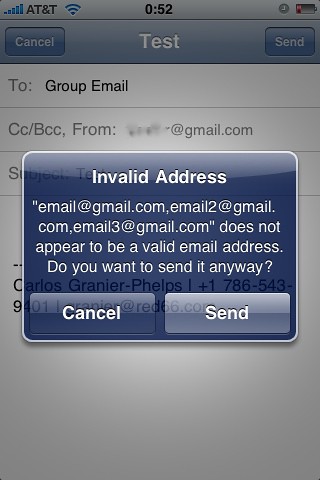
Type your message and send it. The following dialog will pop up. Ignore it and hit Send once more:
UPDATE: With the updated instructions this dialog will not pop-up! Nor will you receive an error message from your ISP’s mail server.
Presto! Instant distribution lists on your iPhone
Did you find the way to add all group contacts at once into the “To” field of the mail sending window?
Hi, the app MGroup (http://itunes.apple.com/us/app/mgroup/id408757608) makes a great job manipulating contact groups and sending SMS or Mail to them. Check it 😉
Management of the Contact Group on the iPhone the best solution will be introduced.
Click for details see the URL below.
http://itunes.apple.com/kr/app/id385692817?mt=8
MailShot is still the only app that uses the trick in this article, but manages the groups for you to make it easy to use.
The main advantage over other group email apps is that you can use MailShot groups from any app (the rest only send email from a page in their own app)
Try it out now as a free download on http://www.itunes.com/apps/mailshot.
Easy how to, thanks a bunch!
THANK YOU!!!!!!!!!!!!!!!!!!!!!!!!!!!!!
I tried this and it worked EXCEPT that I had to delete the last > from the last email address to get that last person’s email sent without getting a nondelivery error message back. I also notice that MailShot uses the same formatting, deleting the last > in the string.
So, I recommend this last fix. Surprised someone else hasn’t posted this by now
Just to let you know that the new version of “MailShot”, back on the App Store this week, can now also import Groups from your address book ! It works just like the method described in this post,  in that it creates single contacts you can use all over your device, but MUCH easier to manage.
Its still free to try for small groups on http://www.itunes.com/apps/mailshot. And we’ve also now removed the limit on maximum group size in the upgraded version, so you can add more than 50 contacts if your ISP will let you.
CheersPeterSolubleApps.comMailShot- Group Email done right. Right in your address book!
Hi, I created an app that allows you to create meta groups from your Contacts and then send them either emails or SMS or even customized flyers with your own photos !
Check this out: http://www.itunes.com/app/imailshotlite
Good Ap — though it does annoy me that I have to get aps for my iphone that my OLD blackberry could just do out of the box….
This was SUPER HELPFUL!! Thank you!
Thanks so much for the tip that gotten me started. Â I was sure it must be a feature so it never occurred to me to try something like this. Â It worked fine. Â In the end it still told me I had an illegal address but when I hit Send Anyway – it went just fine. Â Yeah for work arounds. Â Apple – get serious here.
Hi there, I’m trying desperately to set thes up for my boyfriends new business venture, but I cant seem to get it to work. please help.
Does it matter that i’m not putting the address in the To: box but we’re using the bcc: instead.?
Thanks
It should work the same in any field. I’ve used it on TO:, CC: and BCC: without issues.
I love this tip !!! This is really makeshift job !
I would advise you to use an application to handle this group email.
I am using Easy Group, which is totally free
http://itunes.apple.com/us/app/easy-group/id461469079?l=fr&ls=1&mt=8
It works also for group emails.
But for sure you can continue to use your tip 😉
Johnification
Thanks for the instructions. Â They work great! Short cut way I did this. Â Copied from a Group Email I sent from my Computer (67 emails) — they already were formatted with the comma. Copied to body of email sent to my iphone. Â Then just did the select all, copy and followed your instructions on setting up in the contacts list. Â Worked great. Â I sent out a test group email from my iphone — have already heard back from a bunch of friends that it worked and they received the email. Â Thanks again
Hi Carlos… for starters, thanks for the post, that has at least gotten me in the right direction, I’m still having an issue though. I am using Gmail as an Exchange and syncing over the air…
In short, I can get this to work if I use the following format, but I get the warning message telling me invalid addresses:email1@gmail.com,email2 .com and trying any other format only send the email to the first person in the list. Here’s a few examples:
“Name”,”Name”
Name,Name
,
Ddpaukner, any luck?
-joe
When I delete the group, it deltes on my pc also. Can you add addresses without copying a nd starting a new group?
Easy Group allows you to group your contacts, send group texts / SMS / emails. It is totally free. You can download it here : group your iPhone contacts
There’s no “clipboard” application per se, but you can copy-paste through it. Anything you copy will automatically be stored on the iPhone’s clipboard and will be available for you to paste into any other app. Most apps support copying and pasting of text, which is what we use in this article.
Let me know if this solves your issues.
There are several additional instructions mixed in with the comments. Here is what you should put in the email box for your group:
email1@comcast.net>, “First2 Last2” , “First3 Last3” , “First4 Last4″ <email4@mac.com
o Notice that the first email in the list does not have a name or an open angle bracket "”
These changes are necessary because if you include the name on the first email and first and last angle brackets, the iOS Mail app will format your group like this when you send an email:
“Group Name” <"First 1 Last1" , “First2 Last2” , “First3
Last3” , “First4 Last4” >
This is not a valid email address string because of the two leading names and angle brackets and the two trailing angle brackets
If you leave off the name on the first email and first and last angle brackets, the iOS Mail app will format your group like this when you send an email:
“Group Name, “First2 Last2” , “First3
Last3” , “First4 Last4”
This is a valid email address string
Here is what you should put in the email box for your group:
email1@comcast.net>, “First2 Last2” , “First3 Last3” , “First4 Last4”
IMPORTANT: omit the very last trailing angle bracket “>” after email4@mac.com. This blog’s comment system has a bug that interprets the angle brackets in the example above as html tags. If I leave off the last angle bracket, the comment system tries to interpret the rest of this comment as html and garbles the formatting.
1. Notice that the first email in the list does not have a name or an open angle bracket
2. Notice that the last email in the list does not have a closing angle bracket “>”
Ignore the garbage that follows this sentence, it is a result of the bugs in this comment system that are trying to interpret parts of the comment as html.
if you follow your steps up the creating the new contact, but then instead go to that contact in the phone or address book, and simply press the tap the list of emails. it will auto populate in a new email with each one separated.
Thanks so much!!!!! I was struggling with group emails from my phone for my son’s soccer team and this did the trick! You rock
So here’s the issue I’m having. The SEND works great – goes out, comes to me and everyone else in the group. Problem is that if I hit reply, it generates the name of the group email and attributes the first address in the formatted list as the address.
Blue oval “Dorothy”. When I click on the oval, the address is JUST the first on my list.
Not a huge issue, but slightly confusing.
This was exactly what I needed!! Thank you so much for the simple and easy tutorial!
I found that this works very well for Verizon and ATT customers, but I can’t make it work for Sprint phones. I’ve used the format ##########@messaging.sprintpcs.com and it works if I send a message to one individual. But if I put that same address in a group the message does not go through.
These steps do not work on iOS 6; you must choose contact and then choose the pseudo dist. list from the contact application. The mail application populates the “To” section with the comma separated values rather than the contact name but it then sends messages flawlessly.
This does not work on iOS 6.1.3. I tried this having a comma/no comma after the last email address and I get a “Cannot Send Mail” msg saying that “a copy has been placed in your Outbox. The recipient “>” was rejected by the server. There is no “>” in the address mentioned but if I go to my Outbox and hit send again, it goes through. Too bad—such a nice trick that otherwise probably works on earlier iOS releases.
I actually have this working on 6.1.3 – Who is your email provider? I remember having this issue a while back (long time ago), but eventually fixed it. Make sure you’ve written the address out as explained in the article. Feel free to drop me a line to troubleshoot further.
Yes!!! If you want to use Gmail iOS app this is the way you have to do it. The other Luke’s way work on the iOS Mail app but I could never get it to work in Gmail (which I prefer). Thank you!
simply login to icloud via the browser. goto contacts, create a group then drag & drop the names you want in that group. done!
Worked perfect for me with name1 format!!
Thank you!!
Works, thanks!
I use exchange, iPhone, outlook on various pcs: The MailShot app on my iPhone trashed my contacts. Started seeing doubles of contacts, then triples, etc. Had to delete app completely to get back to normal